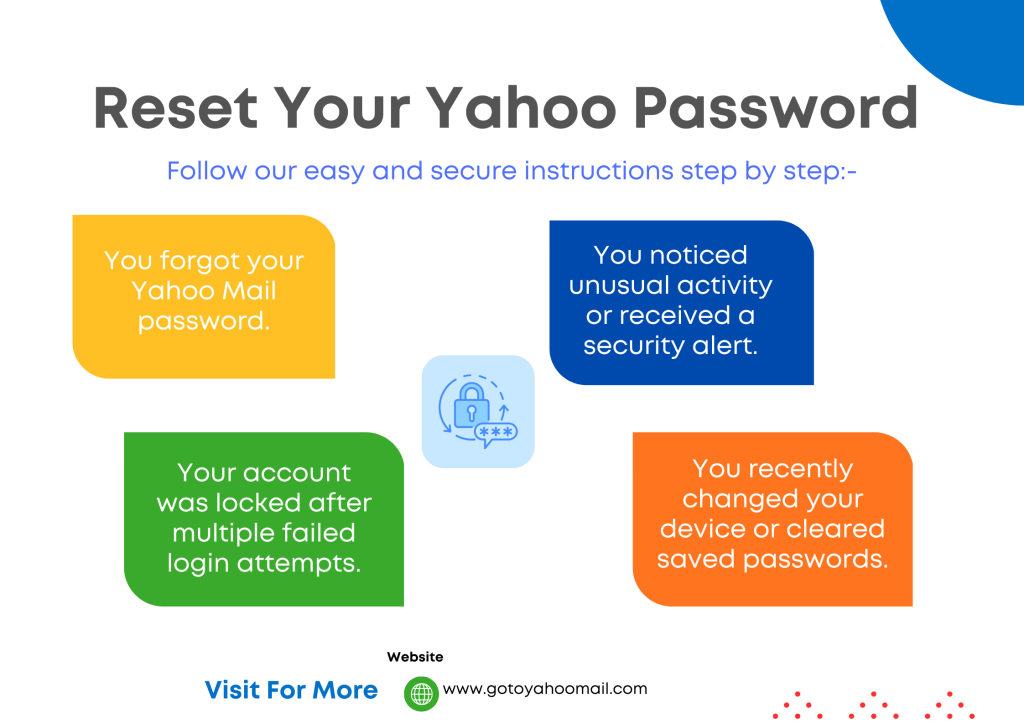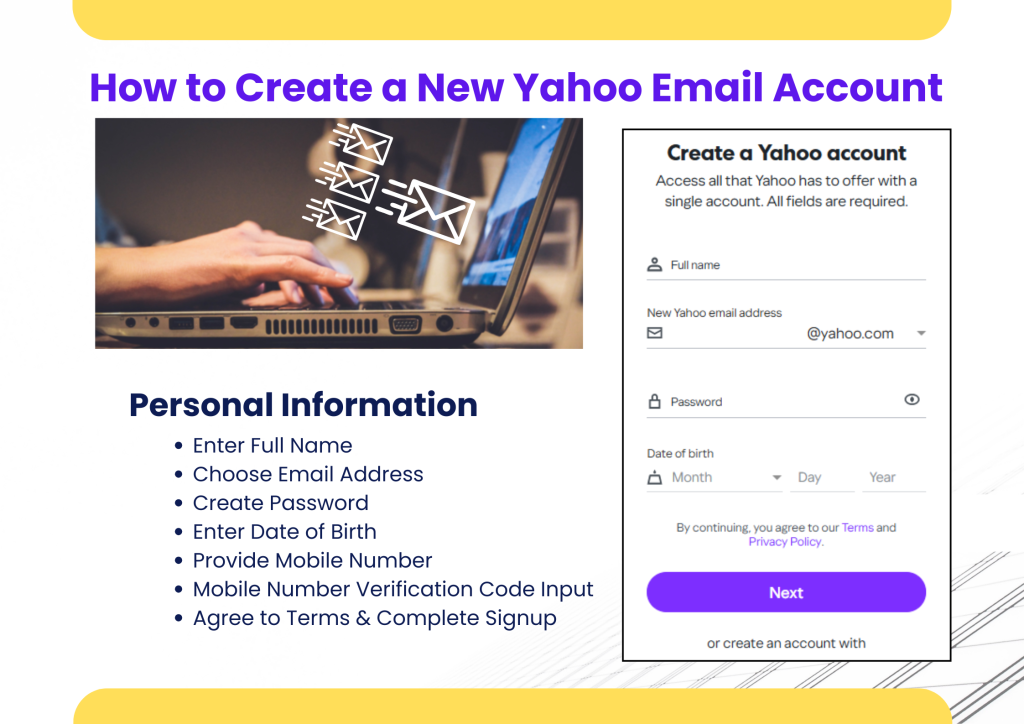
Yahoo email password change is one of the most effective ways to keep your Yahoo email account safe. Changing your Yahoo email password not only helps to secure your account from unauthorized access but also enhances personal privacy. Whether you are using a desktop browser or the Yahoo Mail mobile app, it keeps your online identity safe.
By performing a password change on your Yahoo account, you add a fresh layer of protection to your account. Regular password updates help prevent unauthorized logins, especially if you’ve used the same password across multiple platforms or suspect suspicious activity
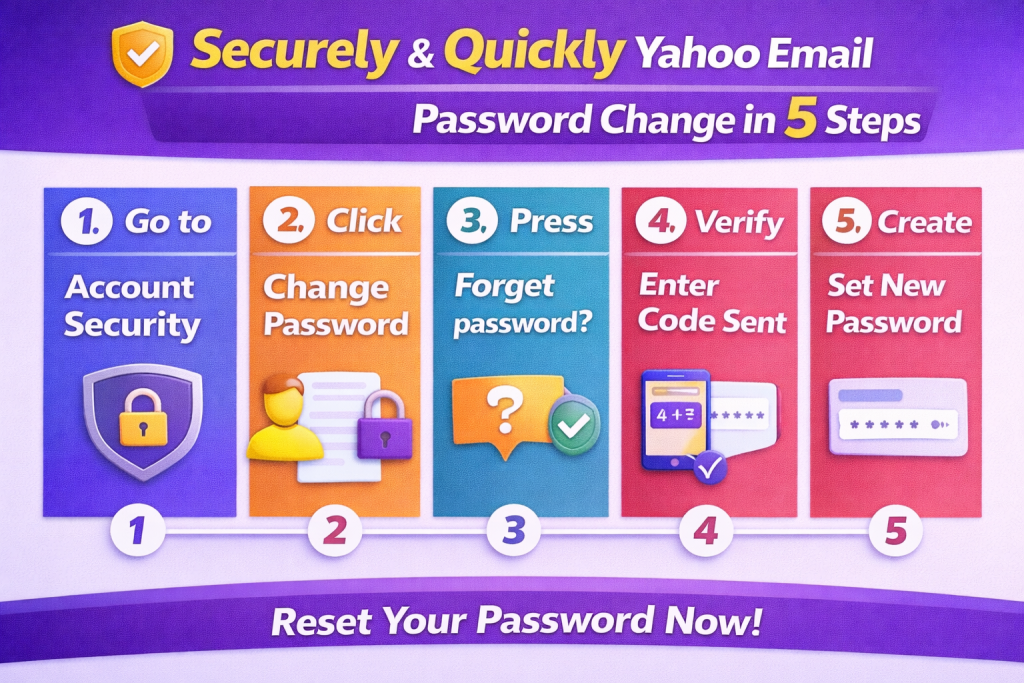
Process of Yahoo Email Password Change
Changing your Yahoo Mail account password is quick and easy. You can do it from a computer or mobile device in just a few minutes. Follow these steps for a successful Yahoo email password change. But here we are only describing the desktop or laptop.
To change your Yahoo email password, make sure you have your current password for the email account.
Step 1: Log into Your Yahoo Account
Before the Yahoo email password change, you need to log in to your Yahoo Mail account.
- Open your browser and visit https://login.yahoo.com/.
- Sign in with your current Yahoo email address and password.
If you are having trouble logging in to your Yahoo Email Account, then you can also check out our How to go to Yahoo Mail.
Step 2: Open Account Security Settings
Click on your profile name or avatar in the top-right corner, and select “Account Info.”
- From the left sidebar, choose “Account Security.
This section allows you to manage all login-related settings.
Step 3: Choose “Change Password.”
Under the “Account Security” page, click on the “Change Password” option.
Yahoo may ask for a verification code through your mobile number or registered email before you can continue. This step ensures that your account remains secure even if accessed from an unrecognized device.
Step 4: Create a New Strong Password
Create a strong and unique password that includes:
- At least eight characters.
- A mix-up of uppercase and lowercase letters.
- Numbers and special characters.
Type your new password.
Confirm it, and click “Continue” or “Save.”
Yahoo’s security recommendations—ideally, use 12 characters to create your Yahoo email password for security reasons. Avoid using common words like “password123” or personal details such as your name or birthdate.
Step 5: Confirm Your Yahoo Email Password Change
Once the Yahoo Email Password Change is successfully updated, Yahoo will notify you that your password has been changed. If your Yahoo account is connected to other devices or mail applications (like Outlook, Android Mail, or iPhone Mail), you need to log in with the new password that you just created.
Sign In Helper Yahoo Mail: Secure In Minutes Easily 2026
Security Tips after a Yahoo Email Password Change.
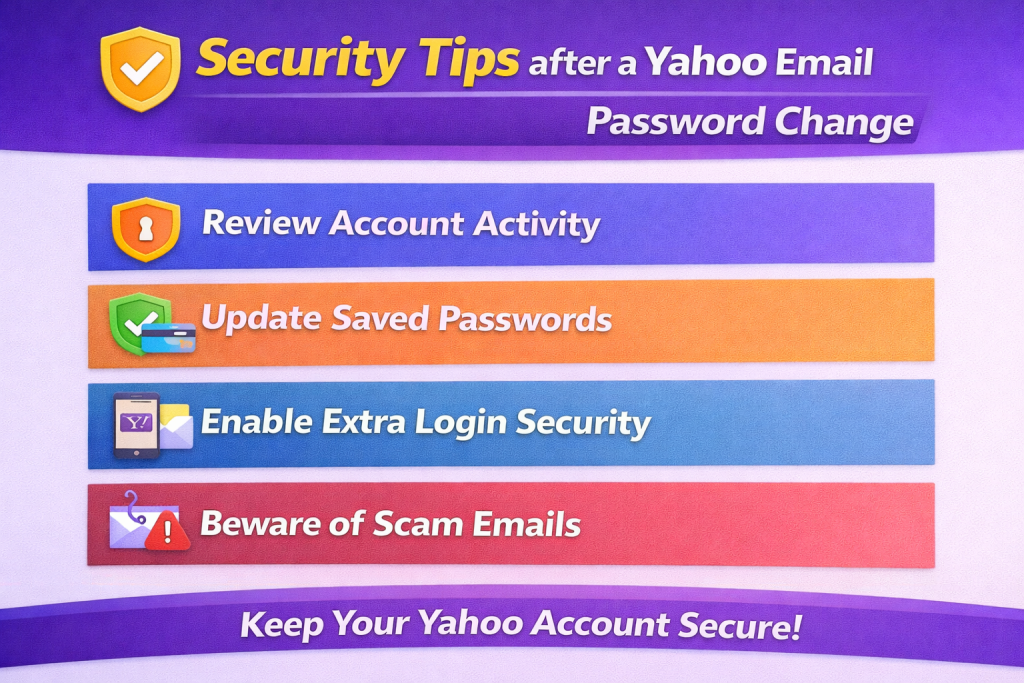
- Enable Two-Step Verification (2FA)
- Update Recovery Information
- Avoid using personal details like your name or birthday.
- Log Out from All Devices
- Use a Strong, Unique Password
- Don’t reuse passwords from other websites
- Beware of Phishing Attempts
- Secure Your Linked Accounts
- Keep Software and Devices Updated
- Consider Using a Password Manager
After changing your password, update saved passwords in browsers and apps, and review recent login activity to ensure your Yahoo account remains safe.
Yahoo Email Password Change Without Phone Number
If you no longer have access to your registered phone number, you can still change your Yahoo email password. Yahoo allows account recovery using alternative verification methods such as a recovery email address or previously saved security options.
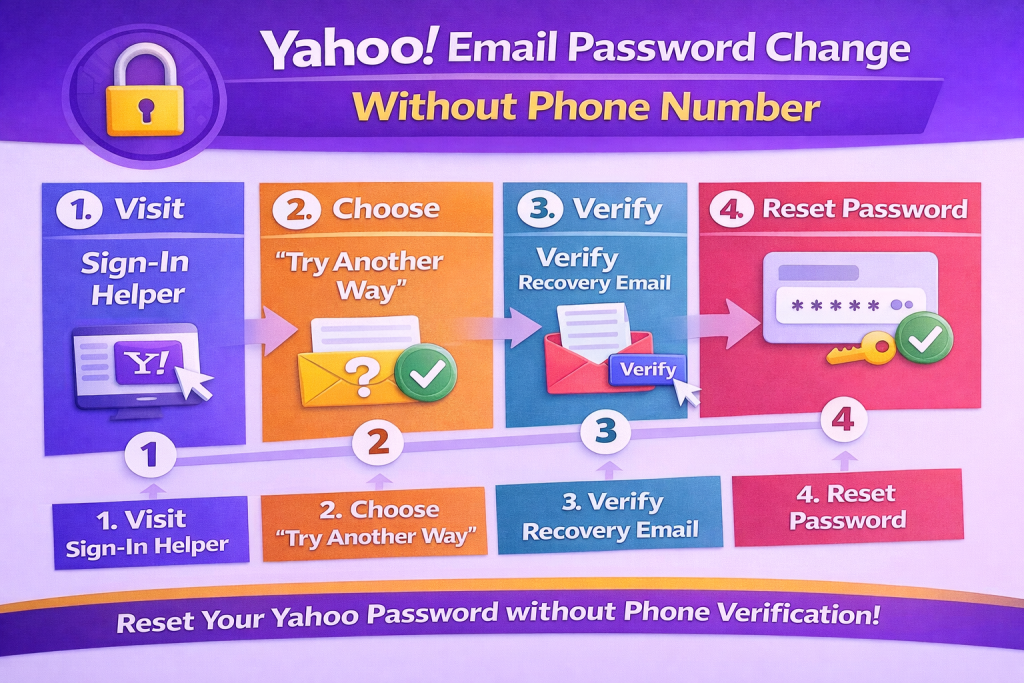
To begin, visit the Yahoo Sign-In Helper page and enter your email address. If prompted for a phone number you don’t have access to, select “Try another way”. Yahoo may send a verification link to your recovery email. Once verified, you can create a new password and regain access to your account without using a phone number.
This option is especially helpful for users who changed numbers or lost access to their SIM card.
Yahoo Email Password Change on Mobile
You can easily change your Yahoo email password using a mobile phone, whether you are using Android or iPhone. Open your mobile browser or the Yahoo Mail app and sign in to your account. Navigate to Account Security from the menu and tap on Change Password.
If you’ve forgotten your password, choose the Forgot Password option. Yahoo will guide you through identity verification and allow you to reset your password directly on your mobile device. This method is quick, user-friendly, and ideal for people who primarily access Yahoo Mail on smartphones.
Old Yahoo Email Password Change
For users trying to access an old Yahoo email account, password recovery may take a bit more effort. Older accounts often have outdated recovery information, which can make verification challenging.
Use Yahoo Sign-In Helper and provide as much correct information as possible. If recovery options are still active, Yahoo may allow you to reset your password. If verification fails, the account may no longer be recoverable due to security and privacy policies. Keeping recovery details updated is essential to avoid losing access to old accounts.
Yahoo Sign-In Helper: Your Recovery Tool
Yahoo Sign-In Helper is the official tool designed to help users recover accounts, reset passwords, and resolve sign-in problems. It works for forgotten passwords, hacked accounts, and login issues caused by missing phone numbers or emails.
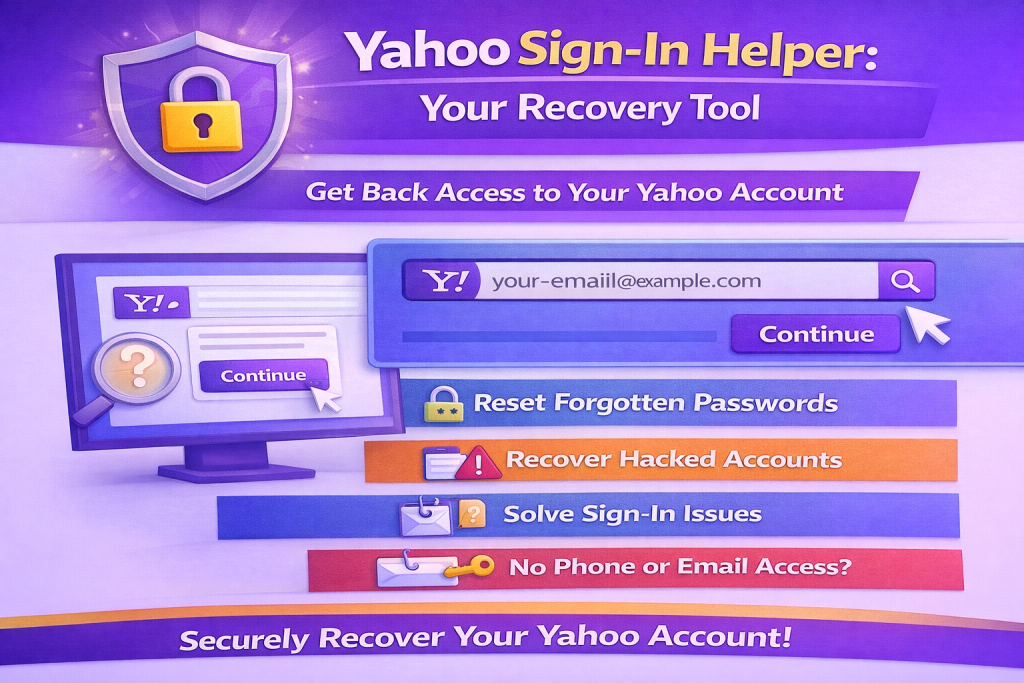
By following the guided steps, users can safely regain access without relying on third-party websites. Always ensure you are using Yahoo’s official pages to protect your personal information.